Documents
Write docs, runbooks and ADRs next to your boards, with live diagrams, comments, version history and sync from git.
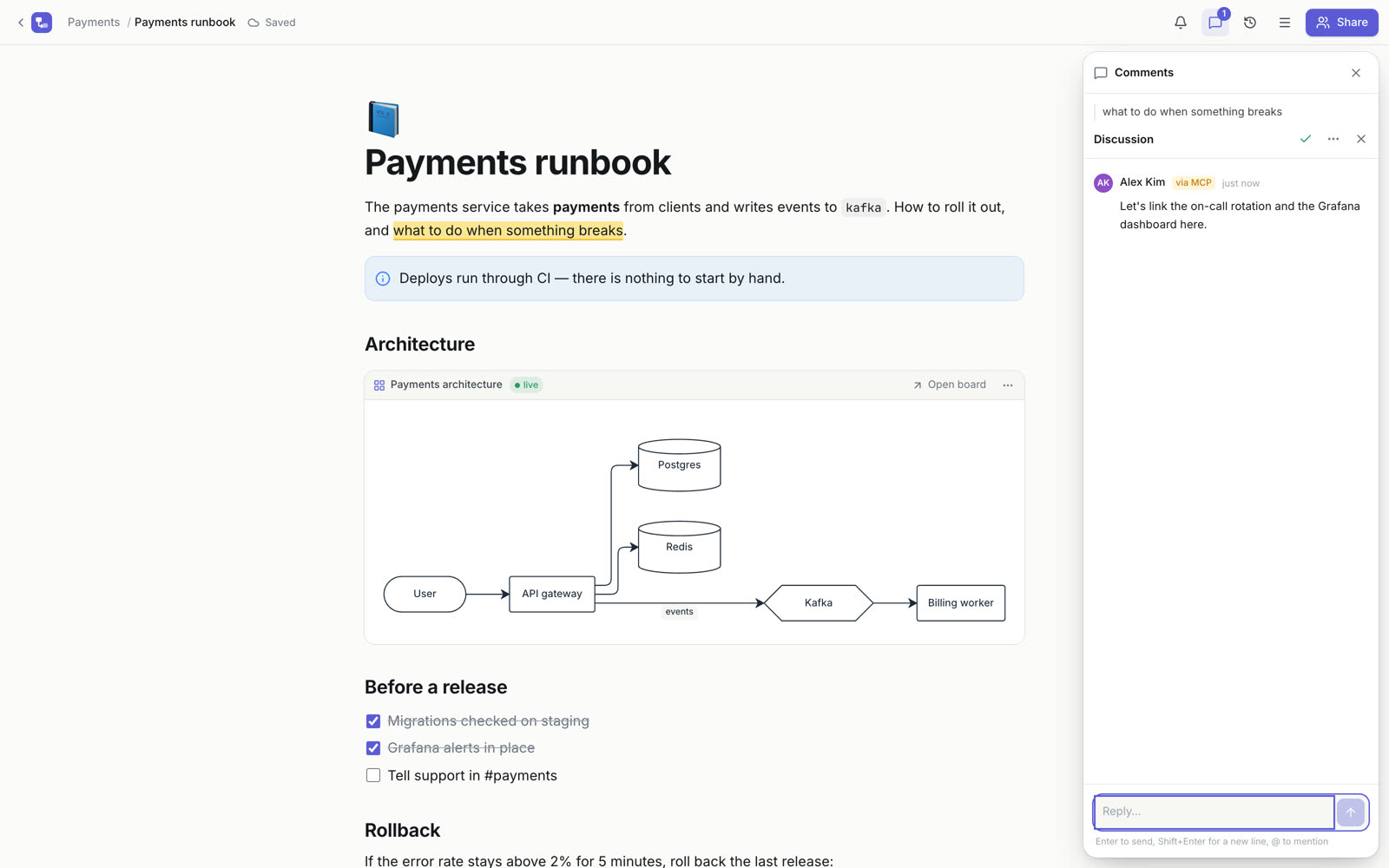
Documents are text pages that live in the same projects and folders as boards. Use them for architecture decisions, runbooks, postmortems and onboarding notes, with diagrams that stay in sync with your boards. Everyone who has the document open sees changes as they are typed.
Create a document
On a project page, click Create and choose:
- Document: an empty page. While it is empty you can start from a template.
- Document from Markdown…: upload a
.mdfile. - Import from Notion or Confluence…: bring existing pages in (described below).
- Docs from git…: publish a repository folder from CI (described below).
Templates
| Template | For |
|---|---|
| Architecture decision (ADR) | Context, options, decision and consequences |
| Proposal (RFC) | Problem, proposal, alternatives, rollout and open questions |
| Incident review (postmortem) | Impact, timeline, root cause and action items |
| Runbook | Architecture, deploy, health checks, rollback and known problems |
| Onboarding | Access, the first week and who to ask |
| Meeting notes | Agenda, notes, decisions and action items |
Write and format
The editor understands Markdown as you type: #, ## and ### for headings, - for a bulleted list, 1. for a numbered list, [ ] for a checklist, > for a quote, three backticks for a code block and --- for a divider.
Press / on an empty line to open the block menu: text, headings, lists, to-do list, callouts, toggle, quote, code, diagram from code, diagram from a board, table, image and divider. Select text to get the formatting bar: bold, italic, strikethrough, inline code, link and Comment.
- Callouts come in five kinds: Note, Tip, Important, Warning and Danger. In Markdown they use the GitHub syntax shown below.
- Toggles are collapsible sections. In Markdown they are
<details>with a<summary>title. - Code blocks have syntax highlighting for Bash, YAML, JSON, TypeScript, Python, Go, SQL and other languages.
- Tables get controls to add rows and columns, toggle the header row, and delete rows, columns or the whole table.
- Images can be pasted, dropped or inserted from the
/menu. They are uploaded to the document.
> [!WARNING]
> Drain the node before you restart it.

<details>
<summary>Rollback steps</summary>

1. Revert the release.
2. Check the dashboards.

</details>
If you paste raw Markdown and it stays as plain text, select it and click Format as Markdown. A Contents outline built from the headings helps you move around long documents.
Diagrams in documents
There are two ways to put a diagram into a document.
A diagram from code. Insert Diagram from code from the / menu, or a code block with the language Mermaid (diagram). Write Mermaid or D2 and the diagram is drawn under the code. Hide the code when you are done. Copy to a new board turns it into editable shapes on a board.
A live diagram from a board. This one follows the board: when someone changes the diagram there, the document shows the new version.
- On the board, select the diagram and click Copy link for a document.
- In the document, paste the link on an empty line.
You can also choose Diagram from a board in the / menu and pick a board, then one of its diagrams or Whole board. In Markdown a live diagram is a doska block:
```doska
board: <board id>
diagram: <diagram id>
```
Leave out the diagram: line to show the whole board. The block menu has Open board, Show another diagram… and Unlink: keep a copy of the code.
Comments
Select text and click Comment. Type @ to mention someone; they get a notification. Discussions are listed on the side of the document, and resolved ones move to their own tab. If the text a comment was about is deleted, the comment stays and says so.
Icons and backlinks
Hover the title and click Add an icon to give the document an emoji.
Paste a link to another board or document and it becomes a link titled with that page's name. At the bottom of every document, Mentioned in lists the documents that link to it or show its diagrams.
Version history
While people edit, Doska saves a version automatically every half hour, and you can save important moments yourself. Open Version history in the top bar to view an older version and restore it. Restoring replaces the document for everyone, and the current state is saved to history first.
From the document menu you can also export a Markdown file (.md), Copy as Markdown, make a copy, or Replace with a Markdown file… (the current text stays in history).
Docs from git
Keep docs in your repository and publish them to Doska after every merge. Each Markdown file in a folder becomes a document, subfolders become folders, and relative links between files keep working.
- In the project, choose Create → Docs from git… and create an access token with edit rights for this project.
- Save the token in the repository as the secret
DOSKA_TOKEN. - Add the workflow from the dialog as
.github/workflows/doska-docs.yml. It looks like this:
name: Docs to Doska
on:
  push:
    branches: [main]
    paths: ['docs/**']
  workflow_dispatch:
jobs:
  doska:
    runs-on: ubuntu-latest
    steps:
      - uses: actions/checkout@v4
      - run: |
          curl -fsSL https://getdoska.top/docs-sync.mjs -o /tmp/docs-sync.mjs
          node /tmp/docs-sync.mjs --project <project id> --dir docs
        env:
DOSKA_TOKEN: ${{ secrets.DOSKA_TOKEN }}- Push to
main.
The script needs Node 18+ and no dependencies, so it works in any CI. Options: --dir for another folder, --folder "Docs" to put documents into a project folder, --prune to delete documents whose files were removed. A document's title comes from title: in front matter, else from the first # heading, else from the file name. Unchanged files are left alone; changed ones keep their previous text in version history.
Synced documents show From git with a link to the file. Edit them in the repository: changes made in Doska are replaced at the next sync. The endpoint behind the script is described in the API reference.
Import from Notion and Confluence
- Export your content:
- Notion: Export → Markdown & CSV, which gives a
.zip. - Confluence: Space settings → Export → HTML.
- Notion: Export → Markdown & CSV, which gives a
- In the project, choose Create → Import from Notion or Confluence… and pick the
.zip(loose.mdor.htmlfiles work too). - Choose a folder in the project and import.
Pages become documents, their nesting becomes folders, and links between pages keep working. Pictures are not carried over yet.
To show a document to people without an account, turn on a read-only link. See Sharing.