Boards
Working on a Doska board: tools, connecting shapes, selection, grouping, alignment, frames, comments, version history, export and import.
A board is an infinite canvas that you and your colleagues edit together in real time. This page covers everything you can do on it: the tools, arranging objects, comments, version history, export and import. For diagrams written as code, see Diagrams as code.
Tools
The toolbar on the left holds the tools. Each has a single-key shortcut; the full list is in Keyboard shortcuts.
| Tool | Key | What it does |
|---|---|---|
| Select | V | Select, move and resize objects. |
| Hand | H, or hold Space | Pan the canvas. |
| Sticky note | S | Click to place a sticky note and start typing. |
| Shapes | R | Rectangle, Rounded, Ellipse (O), Diamond (D), Triangle, Hexagon, Parallelogram, Database, Terminator, Document, Subroutine, Trapezoid. Click the button to pick a shape. |
| Text | T | A free text block. You can also double-click an empty spot of the canvas. |
| Arrow | L | Draw an arrow, optionally attached to shapes at both ends. |
| Pen | P | Freehand drawing. |
| Frame | F | A named area that groups part of the board. |
| AWS icons | I | A searchable library of AWS service icons. Drag an icon onto the board. |
| Image or file | — | Upload images and files from your computer. |
| Comment | C | Leave a comment on an object or a spot of the board. |
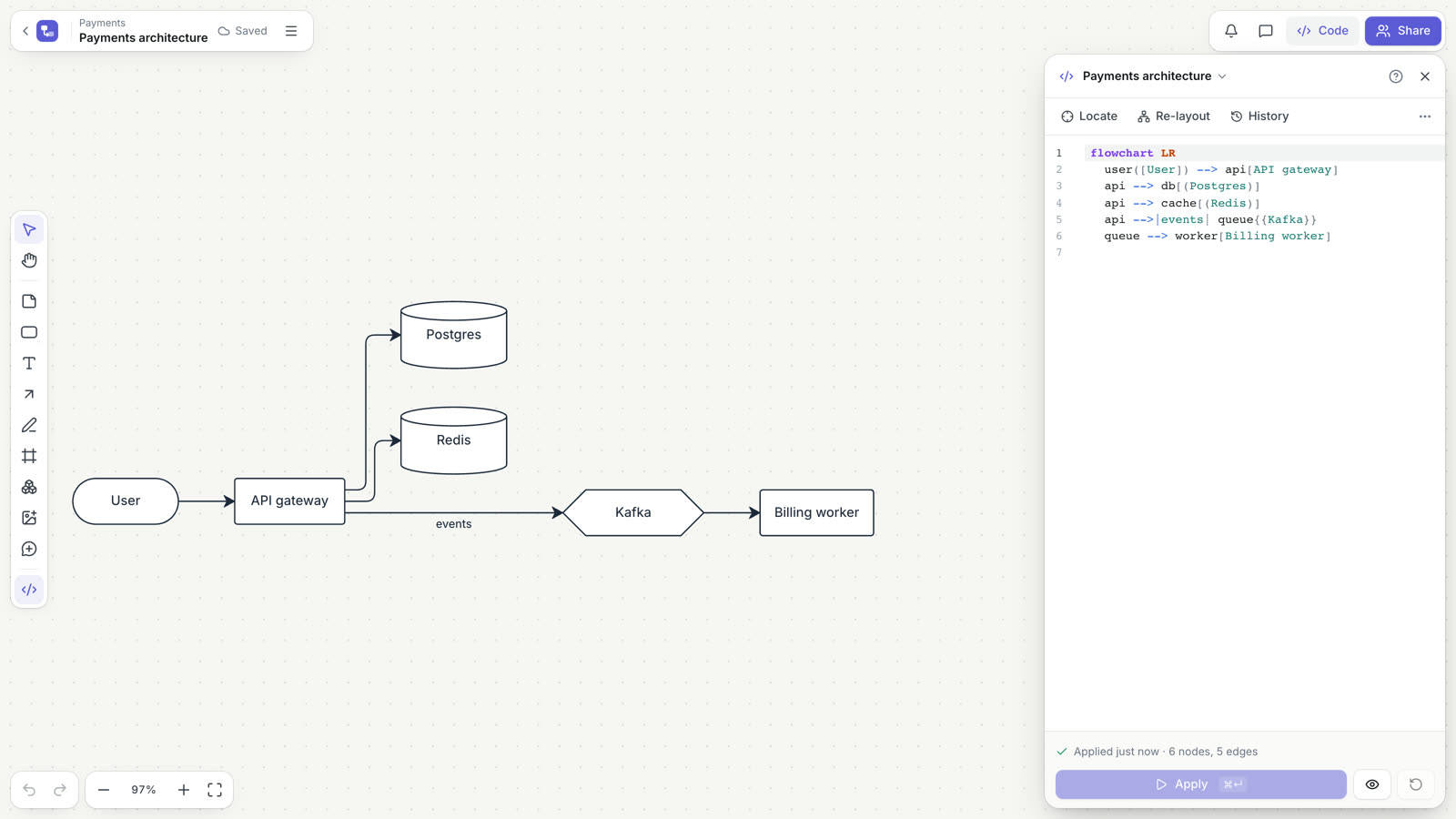
| Diagram from code | ⌘/Ctrl+E | Open the code panel. |
To draw a shape or a frame, pick the tool and drag on the canvas. Hold Shift while dragging to get a square. Press Esc to go back to Select.
Connecting shapes
There are two ways to connect shapes with an arrow:
- Arrow tool. Press
Land drag from one shape to another. The arrow attaches to both and follows them when they move. - Quick handles. Select a single shape or sticky note: a + handle appears on each side. Drag a handle to another shape to connect them, or click it to create a copy of the shape on that side, already connected.
Arrows route around shapes that stand in their way. Select an arrow to change it in the toolbar above it: the route (Straight, Elbow, Curved), Line start and Line end (No arrowhead, Arrow, Triangle, Circle, Cross), the line width and style (Solid, Dashed, Dotted) and the color. Double-click an arrow to add a label.
Selecting and moving
| Action | How |
|---|---|
| Select an object | Click it. |
| Add or remove from the selection | Shift+click. |
| Select an area | Drag on an empty spot. Frames are selected only when the area covers them completely. |
| Select everything | ⌘/Ctrl+A |
| Move | Drag. Hold Shift to move along one axis only. |
| Nudge | Arrow keys move by 1 px, Shift+arrow keys by 10 px. |
| Duplicate | ⌘/Ctrl+D, or Alt+drag to drag out a copy. |
| Resize | Drag a handle. Shift keeps proportions, Alt resizes from the center. Images keep their proportions unless you hold Shift. |
| Edit text | Double-click, or press Enter with one object selected. |
| Delete | Delete or Backspace. |
When you select something, a toolbar appears above it with the properties that apply: Fill, Border and line, Line width and style, Text size, Bold, text alignment, Text color, Sticky note color, Shape type and, for AWS icons, Replace icon. The More menu (⋯) has Duplicate, Bring to front, Send to back, Group, Ungroup, Convert to diagram, Export selection and Delete.
Lock (⌘/Ctrl+Shift+L) pins objects in place so they cannot be moved or edited by accident. Select them and press the same shortcut to unlock.
Grouping
Select several objects and press ⌘/Ctrl+G to group them. A group is selected and moved as one. To pick a single object inside a group, ⌘/Ctrl+click it. Press ⌘/Ctrl+Shift+G to ungroup.
If you group nodes of a diagram from code, Doska wraps them in a new subgraph in the code, and a frame appears around them.
Alignment, spacing and the grid
Smart guides. While you move or resize an object, it snaps to the edges and centers of its neighbours. Pink lines show the alignment, and equal spacing between objects is marked. Hold ⌘/Ctrl while dragging to move without snapping.
Measure distances. Select an object and hold Alt: Doska shows the distances to the object under the pointer, or to the frame around the selection.
Align and distribute. Select two or more objects and open Align in the toolbar, or use Alt+A, Alt+D, Alt+W, Alt+S (left, right, top, bottom), Alt+H, Alt+V (centers) and Alt+Shift+H, Alt+Shift+V (distribute three or more objects). On a Mac, Alt is the Option key. With a single object (or one group) inside a frame, the same commands align it within the frame (Align in the frame).
Auto-layout selection. With several objects selected, this button lays them out neatly, following the arrows between them.
Grid. Turn the dot grid on or off in the board menu (☰ next to the board name) with Grid. Snap to grid (Shift+G) makes objects stick to the grid's dots and turns the grid on.
Frames
A frame is a named area of the board, for example a section of a workshop or a part of the architecture. Press F and drag to draw one. Objects that lie completely inside a frame move together with it. Double-click the frame's title to rename it.
Frames also appear automatically around subgraph groups of diagrams from code; those frames follow their nodes.
Presenting
Frames double as slides. Click Present in the top bar to show the board full screen, one frame at a time: top-level frames in rows from the top, left to right within a row. A board without frames is shown as a whole.
- Go forward with
→,Spaceor a click, back with←.HomeandEndjump to the first and last slide. - Hold
L(or click Laser) to point: your cursor leaves a glowing trail everyone on the board sees. Escends the presentation.
People who have the board open get an invitation to follow. Click Follow and your view moves with the presenter's slides; scroll or click on the board, or click Stop following, to look around on your own.
To send a presentation, add ?present to a board's address, or to its public link: it opens straight into presenting.
Images and files
Add images and files with the Image or file button, by dragging them from your computer onto the board, or by pasting a screenshot with ⌘/Ctrl+V. Images appear on the canvas; other files appear as file cards. Double-click an image to open the original, or a file card to open or download the file.
Comments
- Press
C(or pick Comment on the toolbar). - Click an object or an empty spot. A comment on an object is pinned to it and follows it when it moves. This works for diagram nodes too.
- Type the comment and press
Enterto send.Shift+Enterstarts a new line. Type@to mention someone who has access to the board.
Mentioned people get a notification (the bell in the top bar), and everyone who took part in a discussion is notified about replies. Open a discussion to reply, Mark as resolved, or Reopen it. The Comments button in the top bar lists all discussions on the board, split into open and resolved; turn on Show resolved on the board to keep resolved pins visible. Press Esc to leave comment mode.
Version history
Open the board menu (☰) and choose Version history.
- While people work on the board, Doska saves a snapshot automatically every half hour.
- Click Save current version to keep an important moment under a name, for example "Before review".
- Doska also saves a snapshot before changes made through an access token (by Claude or a script) and before a restore.
Click a version to preview it, then Restore this version. Restoring replaces the board for everyone; the current state is saved to the history first, and you can undo the restore from the notification.
Export and import
| What | Where | Formats |
|---|---|---|
| The whole board | Board menu (☰) → Export | PNG image, SVG image, Board file (.json) |
| The selection | More (⋯) → Export selection | SVG, PNG |
| One diagram from code | Code panel → diagram menu → Export diagram | SVG, PNG, Source (.mmd) |
The board file contains the whole board and can be imported back: on a project page, click Import and choose the .json file. A new board is created in the current project or folder. Files up to 25 MB are accepted; a Markdown file imported the same way becomes a document.
Make a copy in the board menu duplicates the board. Objects copied with ⌘/Ctrl+C can be pasted into another board.
Presence and live editing
Everyone on the board sees each other's cursors with names and every change as it happens. Avatars of the people on the board are in the top bar; click one to jump to where that person is looking. The diagram code panel is edited together too.
The status next to the board name shows whether your changes are on the server: Saved, Saving… or No connection.