Free tools
Free online editors for Mermaid, D2, nwdiag and Terraform diagrams. No account, nothing uploaded, SVG and PNG download.
Doska has four free editors that work without an account. Write diagram code or drop an infrastructure file, see the picture as you type, and download it as SVG or PNG. When you want to keep working on it with your team, save it to a board.
| Editor | Address | What it does |
|---|---|---|
| Mermaid | /mermaid | Flowcharts, sequence diagrams and architecture-beta cloud diagrams with AWS icons |
| D2 | /d2 | Architecture with containers, shapes, AWS icons and connections |
| nwdiag | /nwdiag | Networks with CIDR ranges, hosts with addresses, router, switch, firewall and server icons |
| Terraform | /terraform | terraform show -json, Kubernetes manifests or docker-compose turned into a diagram, with a network check |
Privacy
Everything runs in your browser. Code and files are read on your computer and are not uploaded anywhere. Only what you explicitly save to a board is stored.
Mermaid, D2 and nwdiag editors
Each editor opens with a sample you can change. The diagram is redrawn a moment after you stop typing, with the same layout engine as Doska boards: tidy arrows, groups and cloud icons. Errors appear under the editor with their line number.
flowchart LR
  user([Customer]) --> api[API]
  api --> db[(Orders)]
api -.-> mail[Email service]direction: right
user: Customer { shape: person }
cloud: AWS {
api: API { icon: aws:lambda }
db: Orders { shape: cylinder }
api -> db: SQL
}
user -> cloud.apinwdiag {
network office {
address = "192.168.1.0/24";
router [address = "192.168.1.1"];
nas [address = "192.168.1.20", icon = net:storage];
laptop [address = "192.168.1.50", icon = net:laptop];
}
}The nwdiag editor also flags addresses outside their network's range and the same address used twice. The syntax for all three languages is in Diagrams as code.
Terraform editor
The Terraform editor turns infrastructure files into an architecture diagram.
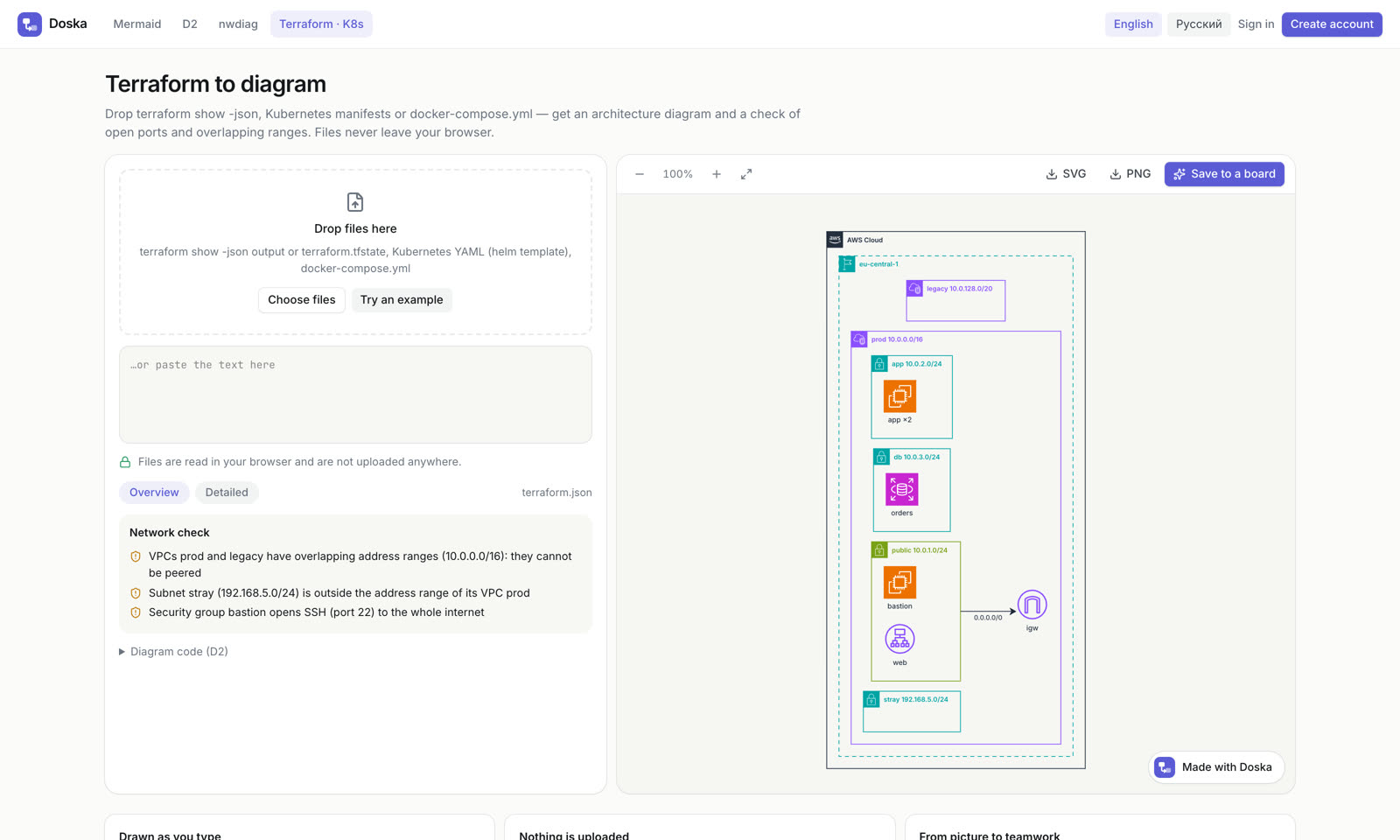
- Open /terraform.
- Drop a file, choose one, or paste the text. Accepted:
terraform show -jsonoutput orterraform.tfstate, Kubernetes YAML (includinghelm templateoutput), anddocker-compose.yml. Each file can be up to 25 MB. To look around first, click Try an example. - Switch between Overview and Detailed. The overview shows the main resources; the detailed view adds security groups, route tables, roles and other supporting resources.
- Expand Diagram code (D2) to see the generated code.
To produce the input file:
terraform show -json > state.json
helm template ./chart > manifests.yamlNetwork check
For Terraform files, the Network check box lists problems found in the network:
- SSH, RDP or database ports open to the whole internet (
0.0.0.0/0); - security groups that let the internet in on every port;
- VPCs with overlapping address ranges;
- subnets outside their VPC's range, and overlapping subnets.
On a board you get the same check plus a "can A reach B" tool. See Infrastructure diagrams.
Download SVG or PNG
When the diagram has no errors, click SVG or PNG above the picture. Downloads have a white background and a small "Made with Doska" line at the bottom. PNG files are rendered at double resolution.
Use the zoom buttons to look at details; Fit shows the whole diagram again.
Save to a board
Click Save to a board to keep the diagram and work on it with others.
- If you are not signed in, Doska asks you to create an account or sign in. The diagram waits in this browser tab and the board is created right after you sign in.
- If you are signed in, a new board is created right away.
On the board, the diagram becomes real shapes you can move, recolor and comment on, and its code stays in sync with them. From the Terraform editor, the board gets the parsed diagram: names, types and relations of your resources, never the file itself or its values. Colleagues you invite see the board and edit it with you in real time.
Doska is free. An account is needed only to keep diagrams on boards and share them.