Sharing and permissions
Organizations, projects and roles in Doska, invite links, sign-in by company email domain, sharing one board and public read-only links.
This page explains who can see what in Doska and how to bring people in: whole teams through an organization, a group through a project, one person to a single board or document, or anyone through a read-only public link. Read it if you set up Doska for a team or decide what to share.
How access works
Everything in Doska lives in an organization. An organization holds projects, a project holds folders, and folders hold boards and documents. Access is granted at three levels, plus a public link for read-only viewing:
flowchart LR
  org[Organization] --> proj[Project]
  proj --> folder[Folder]
  folder --> item[Board or document]
  orgInvite([Organization invite]) -.-> org
  projInvite([Project member]) -.-> proj
  direct([Direct share]) -.-> item
  public([Public link, read-only]) -.-> item
Organizations are isolated from each other: people from another organization can't see your projects, and a board from another organization answers "not found" rather than "forbidden". Every request is checked on the server, and when you change or remove someone's access, their open boards reconnect with the new rights right away.
Organization roles
Open the organization menu at the top of the sidebar and choose Members and settings.
| Role | What it allows |
|---|---|
| Owner | Everything, including deleting the organization and appointing admins |
| Admin | Manages members and invitations, sees all projects |
| Member | Creates projects, sees the organization's shared projects |
| Guest | Sees only the projects they were invited to |
Owners and admins are owners of every project in the organization. Admins can manage members and guests; only an owner can appoint or remove admins and owners. An organization always keeps at least one owner.
Projects and their roles
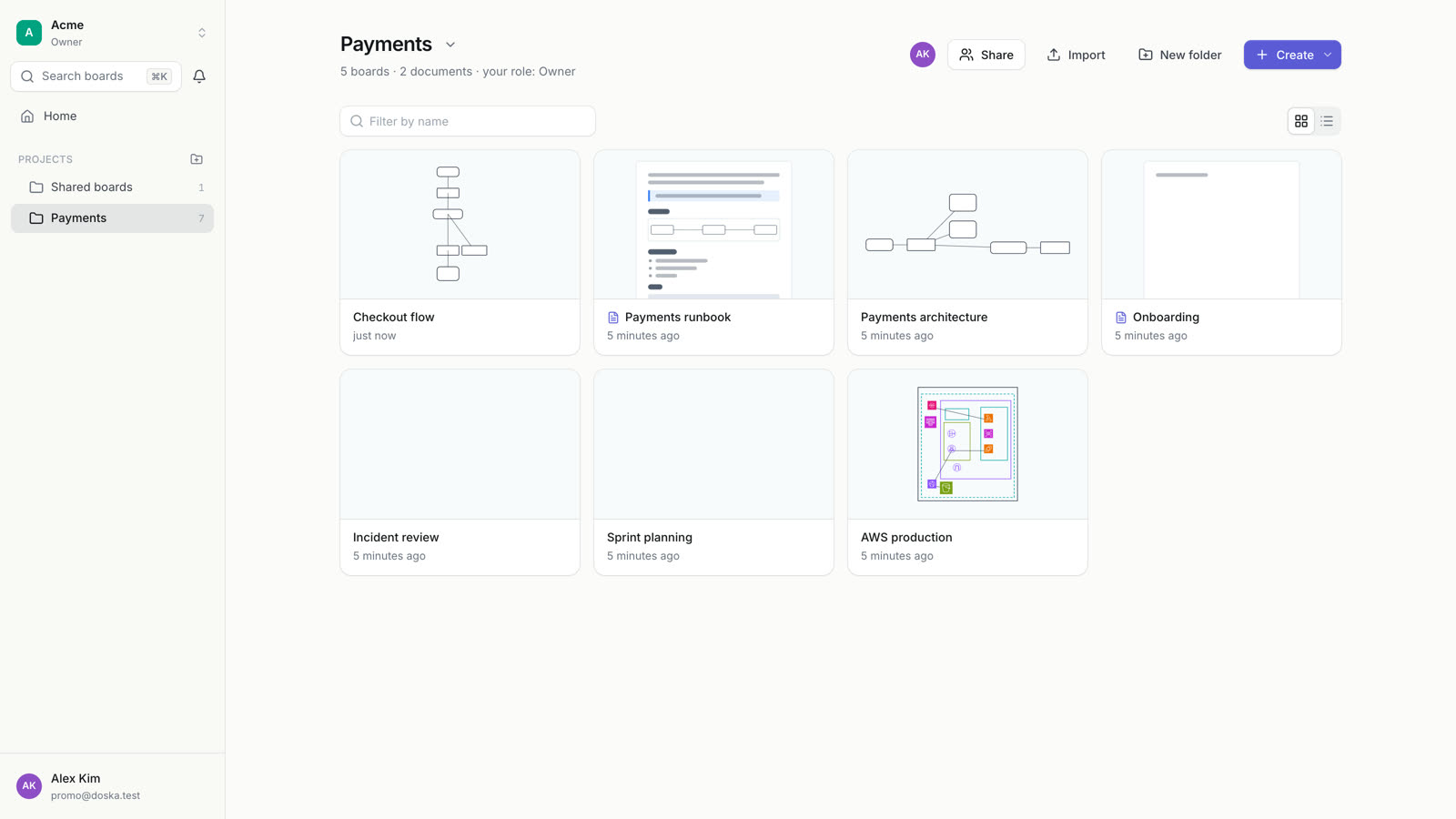
A project is a set of boards and documents with its own member list. Open a project and click Share (or Members and access in the project menu).
| Project role | What it allows |
|---|---|
| Owner | Members, deleting the project |
| Editor | Creates and edits boards |
| Viewer | Can only view |
Viewers can still read and write comments.
At the top of the dialog, Entire organization sets what all members of the organization get automatically: No access, Can view or Can edit. Guests never get this access; they see a project only when someone adds them to it.
To add a colleague, type their name or email in the dialog, pick a role and click Add. Only people who are already in the organization can be added this way; everyone else gets an invite link.
Folders
Folders organize boards and documents inside a project and can be nested. They don't have permissions of their own: whoever can see the project sees all its folders. Editors create, rename and move folders. Deleting a folder keeps its contents: boards and subfolders move one level up.
Invite people
Invite links are valid for 7 days. You can see active links under the invite section and Revoke any of them.
To the organization
Owners and admins open Members and settings → Invite, pick a role for the Invite link and copy it. The link adds a person to the organization with that role; someone without an account signs up with the same link. Owners can invite with any role, admins with Member or Guest.
To a project
Project owners use the Invite link section of the project's Share dialog and pick Editor or Viewer. Someone outside the organization joins it as a guest and sees only this project.
Sign-in by company email domain
Instead of sending links to every colleague, an owner or admin can tie the company domain to the organization in Members and settings → Sign-in by email domain: enter the domain (for example company.com), choose Member or Guest and click Add.
From then on, everyone who signs in with Google using an address at that domain joins the organization right away, without an invite link.
- It works only for addresses that Google has verified. People who sign up with an email and password don't join by domain.
- You can add only the domain of your own email address.
- Public mail services such as
gmail.comcan't be added, and one domain can belong to only one organization.
Share a single board or document
Use this when someone needs one board, not the whole project. Click Share in the top bar of the board or document.
- Type a colleague's name or email and pick a role: Editor (edits it and shares it further) or Viewer (views and comments).
- For someone outside the organization, create an Invite link instead. They join the organization as a guest and see only this board or document.
Anyone who can edit a board can share it, up to the Editor role. Who has access lists everyone, with the reason: "Through the project" or a direct share. Direct shares can be changed or removed with Remove access, and a person can Leave a board shared with them. Boards shared with you appear under Shared with you on the home page.
Public links
A public link shows a board or document to anyone, without signing in.
- Click Share.
- Under Only people with access, click Turn on. The block changes to Anyone with the link can view.
- Click Copy next to the link and send it.
What a public link does:
- It is read-only and shows changes live, as people edit.
- It opens only this board or document. For a document, the live diagrams it embeds from other boards are shown too. Nothing else in the project is reachable.
- Pages opened through a public link are not shown in search engines.
- Turn off cuts off everyone who is looking through the link immediately. Turning it on again creates a new address; the old one stays dead.
Anyone who can edit the board can turn the link on or off. API tokens and Claude can't change sharing: they can only report whether a link is on.
What guests can see
| Member | Guest | |
|---|---|---|
| Projects with Entire organization access | Yes | No |
| Projects they were added or invited to | Yes | Yes |
| Boards and documents shared with them directly | Yes | Yes |
| The organization's member list | Yes | No |
| Create projects | Yes | No |
To give a guest more, an admin changes their role to Member in Members and settings.
Removing someone from the organization also removes them from all its projects and shared boards, and their open sessions on those boards end at once.
Organization branding
Branding gives an organization its own logo and colour in the sidebar and the organization switcher. It is switched on per organization by the server administrator; when it is on, owners and admins see a Branding section in Members and settings:
- Upload logo: PNG, JPEG or WebP, cut to a square.
- Colour: pick one from the palette, any colour, or the colour of the logo.
- Use as the interface accent: buttons, selection and links take this colour for everyone in the organization.
Public links of an organization with branding don't show the Doska badge. If branding is switched off later, the logo and colour are hidden but kept.
Related
- Claude and MCP: API tokens follow the same permissions.
- Privacy and security